Subtitle a video
Summary
Create a project
Start by launching Subs Factory. The window below should appear.

Click the "Open a video file" button. Then, in the window that appears, select the video file you want to subtitle.
Finally, you can save the created project. In the "Project" menu, choose "Save", then select the saving location.
Please note that the project file, which has a .sfp extension (for Subs Factory Project) will contain your subtitles, markers and settings, but not the video : the file would be much too heavy. Only the video file location is stored ; if the file is moved, Subs Factory will ask for its location again.
Create subtitles automatically
Automatic subtitle creation, also known as transcription, is a paid feature (Why?), and requires purchasing minutes via an in-app purchase. However, a quota of free minutes is offered once.
If your video or audio file has multiple audio tracks, select the one you want to base your subtitles on using the menu located below the video (or below the "Audio only." label if applicable), on the left.
The automatic transcription feature requires an internet connection. The selected audio track is compressed and sent to the transcription server, but will in no case be used for anything other than its transcription, and is not retained once the transcription is complete.
Then, click the "Transcribe audio" button located above the video. The following window should appear.

The first menu allows you to choose the language of the audio to transcribe. It can be left at
"Automatic detection", however specifying it manually can help avoid detection errors, for example
when dealing with variants of the same language.
On the other hand, if your audio track contains several different languages, to transcribe them all,
you must choose "Automatic detection", as detection is performed separately for each sentence. If you specify
a language, sentences in another language will be poorly or not at all transcribed.
Then, choose which part of the file you want to transcribe. To save your credits, it is advisable to do it in ranges, avoiding long stretches of silence or music.
By default, the fields for entering the start and end of the transcription range are set to the beginning and end of the file. If you use markers, the easiest way to define the range to transcribe is to place markers at the beginning and end of the chosen range, then use the small arrow to the right of the input fields to select those markers as the start and end of the range.
You will also find in this window the duration of the transcription you are about to perform, as well as the remaining purchased time. If it is not sufficient to complete the transcription, you can use the "Get more transcription time" button.
Finally, click the "Transcribe" button. A new subtitle file is created in the project, containing the transcription. Don't forget to save the project or export the newly created file, to avoid losing it.
Create subtitles manually
Click the "Create new subtitles" button, located at the bottom right of the window. An empty subtitle file is created in the workspace.
The main window should now look like this :
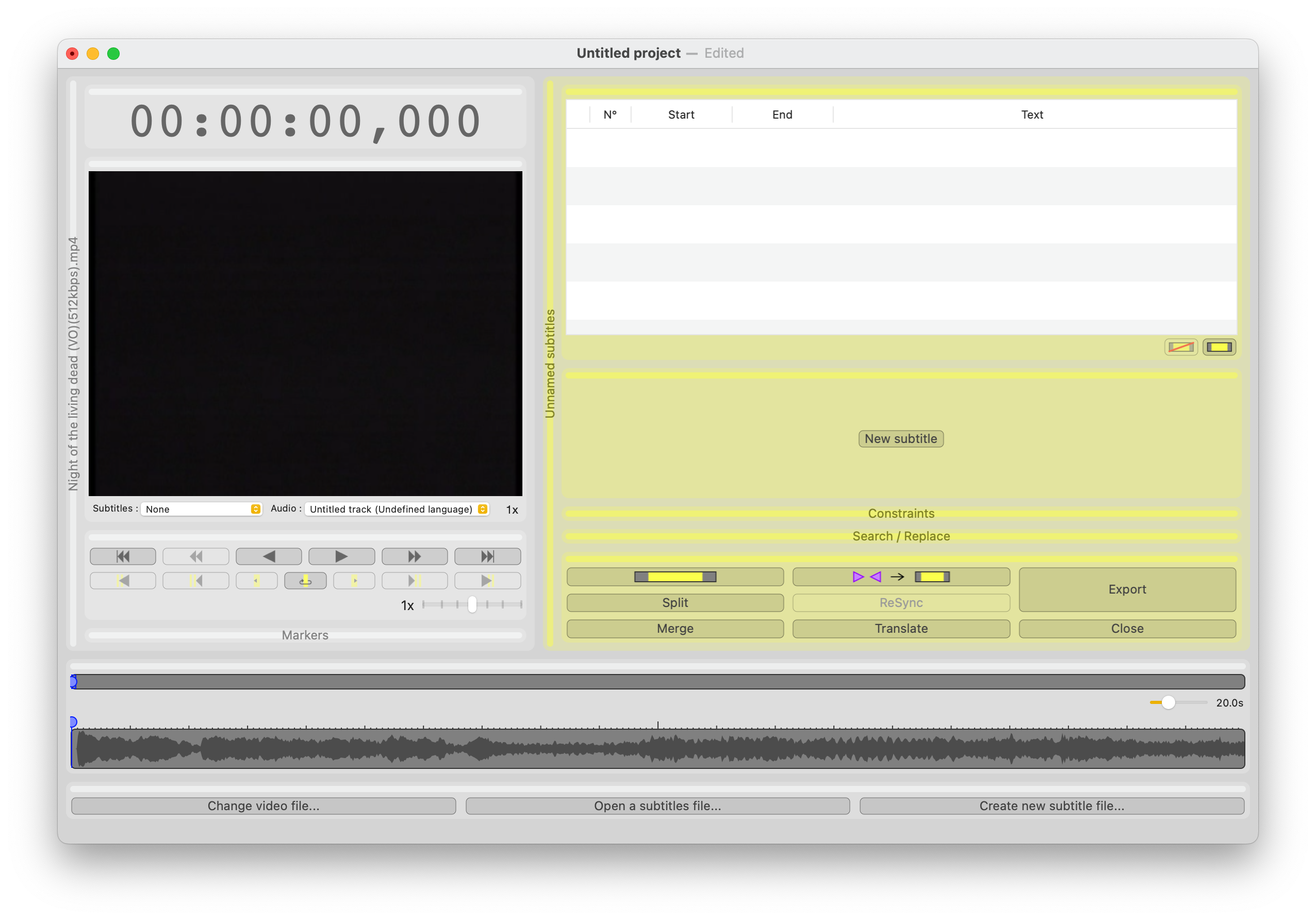
To simply create an empty subtitle, there are two solutions :
Play the video (at slower speed for more precision, thanks to speed slider in the control palette).
Type I (for in) on your keyboard when the subtitles should begin - for example when someone starts to speak. Then type O (for out) when at the end of the subtitle. You just created a beginning marker
 and an end marker
 .
. Markers can be seen in the detailed timeline (the bottom one):
In this picture, they mark two subtitles.
If needed, you can adjust their precise location by drag-and-dropping them in the timeline with your mouse.
Then, use the
 button (or the
⌘K keyboard shortcut)
to transform those two markers into one subtitle.
button (or the
⌘K keyboard shortcut)
to transform those two markers into one subtitle.This button can also be used only once after having created markers for several subtitles.
Locate the beginning and end of the subtitle, for example by looking at the timeline waveforms, on the bottom of the window. While maintaining the option (⌥) key pressed, click in the detailed timeline (the bottom one) on the location for the subtitle beginning. Keep the mouse button pressed, and drag to the end location. Once there, release the button. The subtitle is immediately created.
If you click without dragging the mouse, a subtitle with default length is created, starting where you clicked. You can then adjust its end by drag-and-dropping it.
You can then either create all the empty subtitles first, by repeating the steps described previously, or enter the text for the created subtitle right away, by following the steps hereafter :
- Activate looping on current subtitle, thanks to the
 button from
the controls palette (or by typing C), then play the video (eg. by pressing the space bar).
button from
the controls palette (or by typing C), then play the video (eg. by pressing the space bar).
- If the subtitle to edit is not already selected, then select it in the subtitles table, or by clicking on it in the timeline.
- Type E. It will activate the subtitle edition field (you can also activate it by clicking in it, or by double-clicking on the subtitle in the detailed timeline).
- Type the subtitle text thanks to its audio, (that is playing in a loop).
- Type ⌘E to finish subtitle edition, then V (or
 button for the controls palette) to exit the loop.
Playing will continue until next subtitle, that you will be able to edit in the same way by typing E, etc.
The field used for quick subtitle edition can be defined in the ergonomy preferences.
Adjust
Should you be dissatisfied with a subtitle timing, you can adjust it: see chapter "Resynchronize just one subtitle" of the "resynchronize" page.
Delete a subtitle
To delete a subtitle, you can use the  button, that exist in
both "Subtitles table" and "Subtitle edition" palettes. It will delete selected subtitle.
button, that exist in
both "Subtitles table" and "Subtitle edition" palettes. It will delete selected subtitle.
You can also click on the subtitle in the detailed timeline while holding option (⌥) key. It will be immediately deleted.
It is possible to cancel a subtitle deletion via the "Edition" menu, or with the command-Z keyboard shortcut.
Export subtitles
To get back a .srt file from a Subs Factory project, use the "Export..."button of the "Actions" palette. You will then be asked the file format (the most common being "SubRip (.srt)"), as well as the text encoding (it is advised to use "Unicode UTF-8") you want to use, and finally you can choose the location where to save the file.
It is possible to export subtitles in a custom format.